Showing posts with label API Integration. Show all posts

Wednesday, July 3, 2024

Data management package REST API - Import package in dynamics 365FO using postman

Data Management Package REST API - Import Package in Dynamics 365FO Using Postman

Data Management Package REST API - Import Package in Dynamics 365FO Using Postman

Welcome to our comprehensive guide on using the Data Management Package REST API to import data into Dynamics 365 for Finance and Operations (Dynamics 365FO) efficiently. This tutorial will walk you through each step of the process using Postman.Please ensure your Bearer token is generated before proceeding.

This same URL which i am going to use can be trigger from any third party system to integrate with dynamics D365 Finance and operations.

Step 1: Create Import Project

Create an import project in Data Management as shown below.
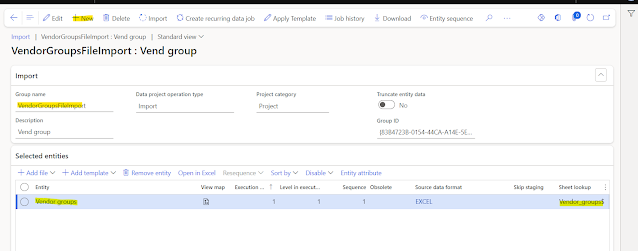
Create Import Project

Step 2: Get Azure Write URL

Post the GetAzureWriteUrl request to the following endpoint:

POST - {{resource}}/data/DataManagementDefinitionGroups/Microsoft.Dynamics.DataEntities.GetAzureWriteUrl

Body:

{
    "uniqueFileName": "CustomerGroupTestFile"
}

A successful response from GetAzureWriteUrl will provide the necessary URL for the next steps.
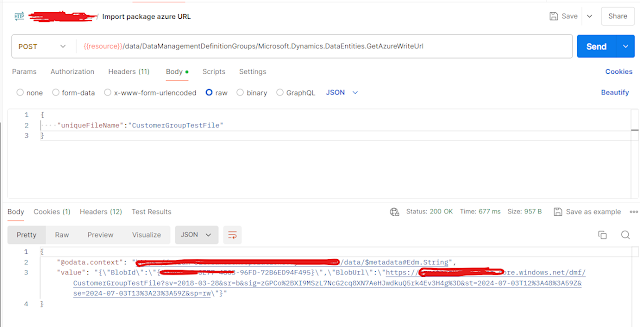
Successful response of GetAzureWriteUrl

Step 3: Generate Package

You can generate the package in two ways:

  1. Generate the package as shown in this blog.
  2. Generate the package by exporting it directly from the DMF project as shown below.

Steps to Export Package:

  1. Create an export project.
  2. Run the export project.
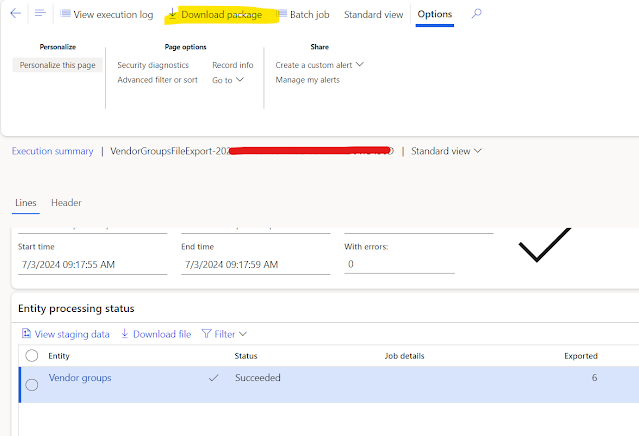
  3. Download the package as shown below.
Create Export Project Run Export Package

Prepare your template in an Excel file.

Download Package

Save it as a Zip. Ensure the Zip contains only the three files shown below.

Extracted Files

Step 4: Upload Package

Copy the highlighted blob URL from the previous response of GetAzureWriteUrl highlited in below screen response section..
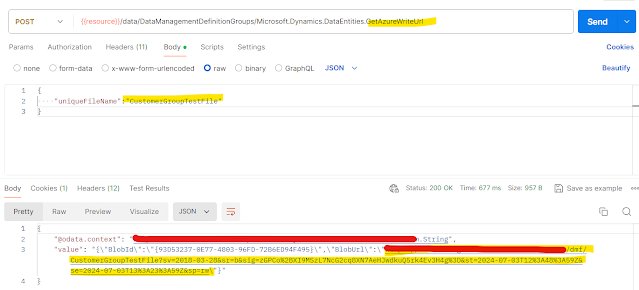
Highlighted Blob URL

Paste the URL in the URL section select Put method.
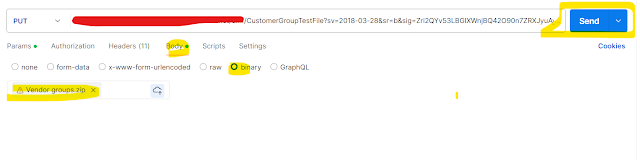
Paste URL and Set Parameters

Set the below parameter x-ms-blob-type to BlockBlob.
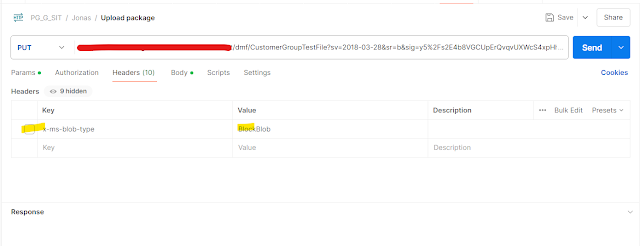
Set Blob Type

After sending the request, you will receive the response shown below:
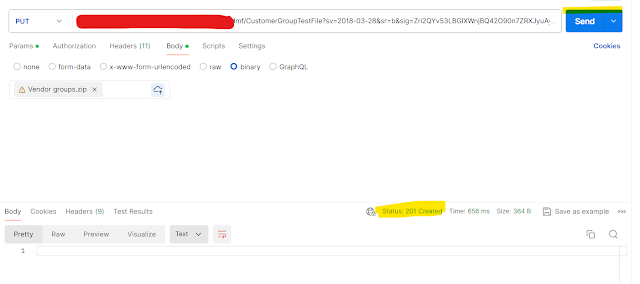
Response After Send

Step 5: Import From Package

Post the ImportFromPackage request with the following body:

POST : {{resource}}/data/DataManagementDefinitionGroups/Microsoft.Dynamics.DataEntities.ImportFromPackage

Body:
{
    "packageUrl": "URL on which we have uploaded the package.",
    "definitionGroupId": "VendorGroupsFileImport",
    "executionId": "",
    "execute": true,
    "overwrite": true,
    "legalEntityId": "USMF"
}
Import From Package

Headers for ImportFromPackage

Headers for ImportFromPackage

The response of ImportFromPackage

Response of ImportFromPackage

New batch history record created under the import group.

Headers for ImportFromPackage

Conclusion

By following these detailed steps, you can effectively manage data imports using the Data Management Package REST API in Dynamics 365FO. This approach not only ensures accuracy but also enhances the efficiency of handling large data sets within your organization.

Data management package REST API - Export package in dynamics 365FO using postman

How to Export Data Packages in Microsoft Dynamics 365 finance and operations

How to Export Data Packages in Microsoft Dynamics 365 finance and operations

Hi All,

In this tutorial, we will guide you through the process of exporting data packages in Microsoft Dynamics 365. Please ensure your Bearer token is generated before proceeding.

This same URL which i am going to use can be trigger from any third party system to integrate with dynamics D365 Finance and operations.

Step 1: Create a New Export Project in Data Management

First, navigate to the Data Management workspace in Dynamics 365 and create a new export project. This project will define the data you wish to export.

Data Management Workspace

Step 2: ExportToPackage Request via Postman

To export a package, you need to send a request from Postman. Here are the details you need:

  • {{resource}}: Your Dynamics 365 URL
  • definitionGroupId: Group name from the previous screenshot
  • packageName: Desired name for the package

POST : {{resource}}/data/DataManagementDefinitionGroups/Microsoft.Dynamics.DataEntities.ExportToPackage

      Body:
      {
          "definitionGroupId":"VendorGroupsFileExport",
          "packageName":"VendorGroupPackage",
          "executionId":"VendorGroupExecutionId-1",
          "reExecute":false,
          "legalEntityId":"USMF"   
      }
    

ExportToPackage Request in Postman

Successful Response of ExportToPackage request

Upon successful execution, you will receive a response indicating that the export has been initiated.

Successful ExportToPackage Response

Step 3: Check Export Status with GetExecutionSummaryStatus

Next, check the status of your export by sending a GetExecutionSummaryStatus request.

POST Request:

{{resource}}/data/DataManagementDefinitionGroups/Microsoft.Dynamics.DataEntities.GetExecutionSummaryStatus

Body:
{
    "executionId": "VendorGroupExecutionId-1"
}
    

GetExecutionSummaryStatus Request in Postman

Successful Response of GetExecutionSummaryStatus request

You will receive a response indicating the current status of your export.

Successful Check Export Status Response

Step 4: Retrieve the Exported Package URL

Finally, retrieve the URL of the exported package with a GetExportedPackageUrl request.

POST Request:

{{resource}}/data/DataManagementDefinitionGroups/Microsoft.Dynamics.DataEntities.GetExportedPackageUrl

Body:
{
    "executionId": "VendorGroupExecutionId-1"
}
    

GetExportedPackageUrl Request in Postman

Successful Response of GetExportedPackageUrl request

You will receive a response with a URL to download the exported package.

Successful GetExportedPackageUrl Response

Download the Package

Copy and paste the URL from the response into your browser to download the package.

Downloaded Package

By following these steps, you can successfully export data packages in Microsoft Dynamics 365. If you have any questions, feel free to reach out in the comments below.

Happy exporting!

Update Values During Data Entity Import in D365FO

Update Values During Data Entity Import in D365FO Updating Field Values During Data Entity Import in Dynamics 365 Finance ...