Hi all,
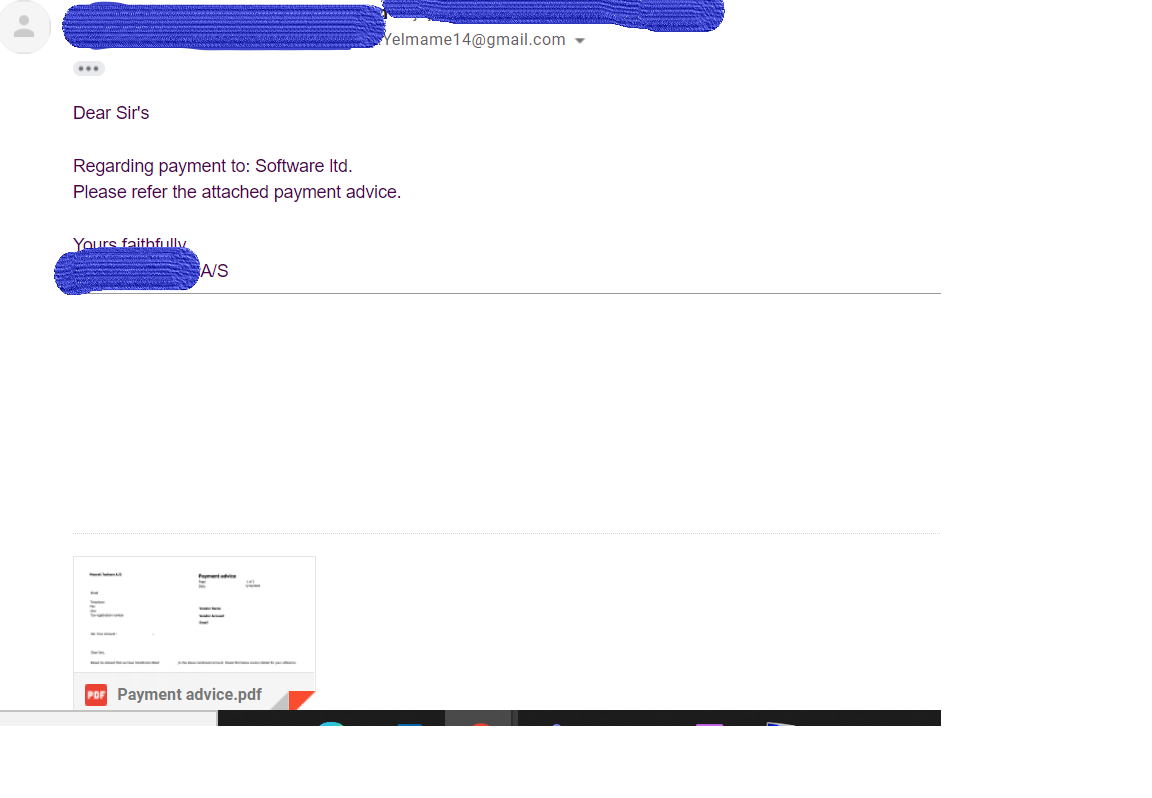
In this blog will learn how to modify the standard email subject and body generated through the Print Management.
Requirement -
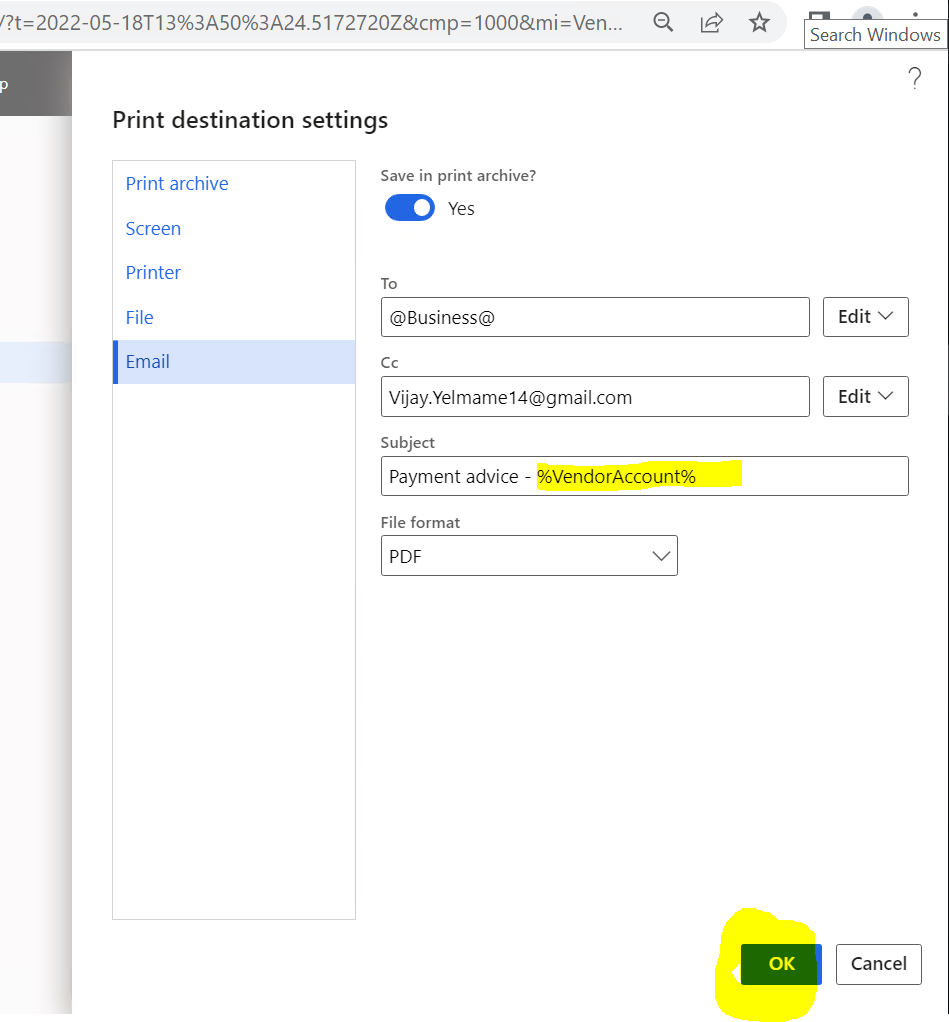
1) Add vendor code in Subject line.
2) Modify email body - add vendor name and Legal entity name.
This can be achieve by doing small customization.
Solution/Steps
1) Create extension class for class - SRSPrintDestinationSettings and add below code.
[ExtensionOf(classstr(SRSPrintDestinationSettings))]
public final class TestSRSPrintDestinationSettings_Extension
{
internal str reportTitle;
internal RecId voucherRecId;
//Type of report
[DataMemberAttribute]
public str reportTitle(str _reportTitle = reportTitle)
{
reportTitle = _reportTitle;
return reportTitle;
}
[DataMemberAttribute]
public RecId voucherRecId(RecId _voucherRecId = voucherRecId)
{
voucherRecId = _voucherRecId;
return voucherRecId;
}
public SrsReportEMailDataContract parmEMailContract(SrsReportEMailDataContract _emailContract)
{
Notes emailBOdy;
SrsReportEmailDataContract contract;
LedgerJournalTrans ledgerJournalTrans;
contract = next parmEMailContract(_emailContract);
if (reportTitle == "Payment Advice")
{
emailSubject = contract.parmSubject();
select firstonly ledgerJournalTrans where ledgerJournalTrans.RecId == voucherRecId;
emailSubject = strReplace(emailSubject,"%VendorAccount%", ledgerJournalTrans.accountDisplay());
contract.parmSubject(emailSubject);
emailBOdy = VendParameters::find().MTEmailBodyForPaymentAdvice;
emailBOdy = strReplace(emailBOdy,"%VendorName%",ledgerJournalTrans.LedgerDimensionName);
emailBOdy = strReplace(emailBOdy,"%LegalEntityName%",CompanyInfo::findRecId(CompanyInfo::current()).Name);
contract.parmBody(emailBody);
}
return contract;
}
}
Step 2 : Create COC for printReport() method of class SrsReportRunPrinter
public final class TestSrsReportRunPrinter_extension
{
public void printReport()
{
if (reportContract.parmRdpName() == "BankPaymAdviceVendDP")
{
BankPaymAdviceContract bankPaymAdviceContract = reportContract.parmRdpContract() as BankPaymAdviceContract;
printSettings.reportTitle("Payment Advice");
printSettings.voucherRecId(bankPaymAdviceContract.parmLedgerJournalTransRecId());
}
next printReport();
}
}
Step 3 : Add new field for email template in AP parameter(VendParameter)
and paste below content
<br>
Regarding payment to: %VendorName%
<br>
Please refer the attached payment advice.
<br>
Yours faithfully
<br>
%LegalEntityName%

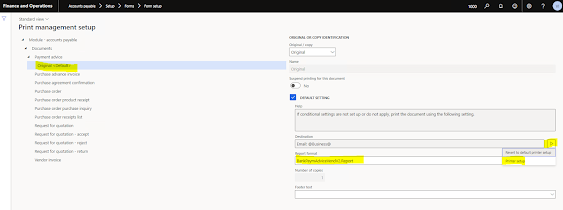
Step 4 : Add setup in Print management
Refer below highlighted path



Result -