Showing posts with label Ignore error in D365Fo. Show all posts

Thursday, May 19, 2022

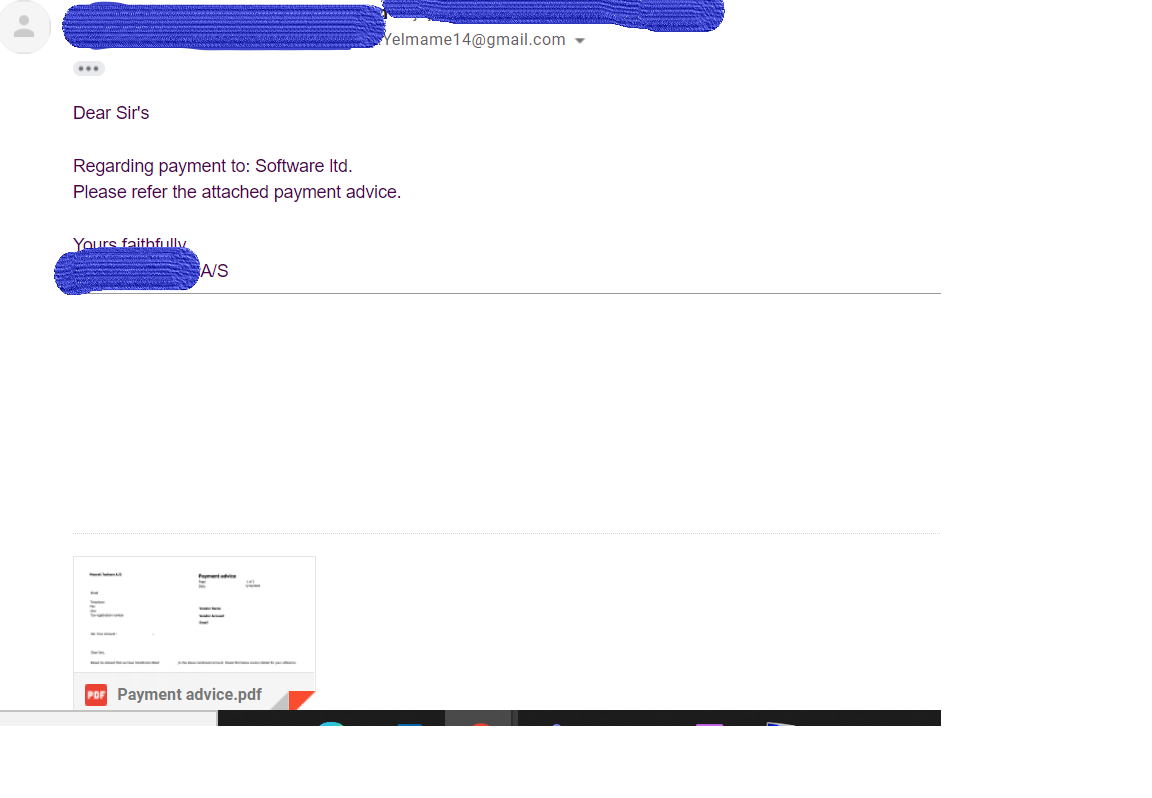
Modify email subject and body of Print Payment Advice email generated by Print Management

Hi all,
In this blog will learn how to modify the standard email subject and body generated through the Print Management.    

Requirement - 
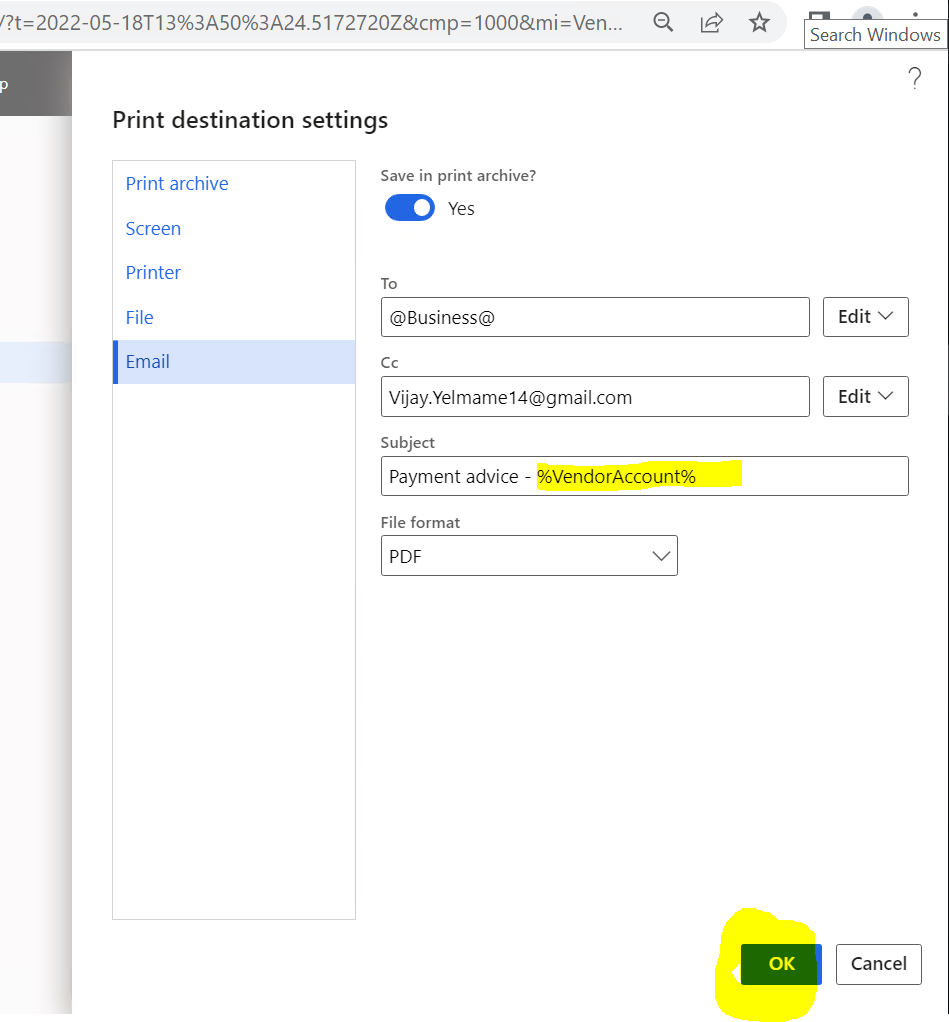
1) Add vendor code in Subject line.
2) Modify email body - add vendor name and Legal entity name.

This can be achieve by doing small customization.

Solution/Steps

1) Create extension class for class - SRSPrintDestinationSettings and add below code.

[ExtensionOf(classstr(SRSPrintDestinationSettings))]
public final class TestSRSPrintDestinationSettings_Extension
{
    internal    str     reportTitle;
    internal    RecId   voucherRecId;
    //Type of report
    [DataMemberAttribute]
    public str reportTitle(str _reportTitle = reportTitle)
    {
        reportTitle = _reportTitle;
        return reportTitle;
    }
     [DataMemberAttribute]
    public RecId voucherRecId(RecId _voucherRecId = voucherRecId)
    {
        voucherRecId = _voucherRecId;
       return voucherRecId;
    }

  public SrsReportEMailDataContract parmEMailContract(SrsReportEMailDataContract _emailContract)

    {

        Notes                                       emailBOdy;
        SrsReportEmailDataContract  contract;
        LedgerJournalTrans              ledgerJournalTrans; 
        contract = next parmEMailContract(_emailContract);
        if (reportTitle == "Payment Advice")
        {

             emailSubject =     contract.parmSubject();
            select firstonly ledgerJournalTrans  where ledgerJournalTrans.RecId == voucherRecId;

            emailSubject =  strReplace(emailSubject,"%VendorAccount%",                                                                 ledgerJournalTrans.accountDisplay());

            contract.parmSubject(emailSubject);            

            emailBOdy = VendParameters::find().MTEmailBodyForPaymentAdvice;

            emailBOdy = strReplace(emailBOdy,"%VendorName%",ledgerJournalTrans.LedgerDimensionName);

        emailBOdy =             strReplace(emailBOdy,"%LegalEntityName%",CompanyInfo::findRecId(CompanyInfo::current()).Name);

            contract.parmBody(emailBody);    

        }
        return contract;

    }

}
Step 2 : Create COC for printReport() method of class SrsReportRunPrinter

[ExtensionOf(classStr(SrsReportRunPrinter))]
public final class TestSrsReportRunPrinter_extension
{
    public void printReport()
    {
        if (reportContract.parmRdpName() == "BankPaymAdviceVendDP")
        {
            BankPaymAdviceContract bankPaymAdviceContract = reportContract.parmRdpContract() as                 BankPaymAdviceContract;
            printSettings.reportTitle("Payment Advice");
            printSettings.voucherRecId(bankPaymAdviceContract.parmLedgerJournalTransRecId());
        }
        next printReport();
        }
}

Step 3 : Add new field for email template in AP parameter(VendParameter)

and paste below content 

Dear Sir's
<br>
Regarding payment to: %VendorName%
<br>
Please refer the attached payment advice.
<br>
Yours faithfully
<br>
%LegalEntityName%


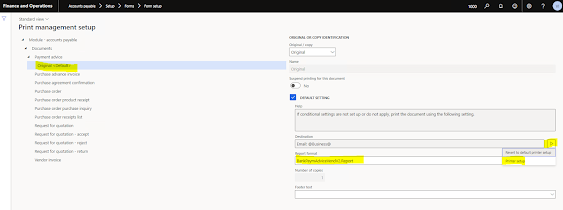
Step 4 : Add setup in Print management 

Refer below highlighted path 


Result -


Saturday, March 19, 2022

How to ignore error in Finance and Operation


Dear  AX/D365FO Team,

Today we are going to learn how to ignore known errors in D365FO.
Recently I came to this situation where I have no choice rather than ignore the error and continue the build. So lets start and understand the situation when we need to ignore the errors.

Requirement : Show lookup in excel add-in for custom dimensions.


Solution :Add related field fix relation with string value (dimensions name).Normally this is not allowed in D365FO but we can achieve this through ignore error functionality. 

Development :
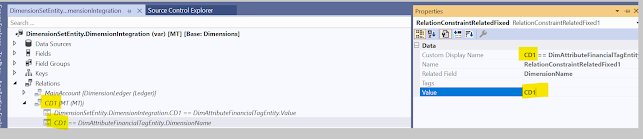
As you can see in below screen CD1 is my string value in related field fix relation, x++ is not allowing you to create related field fix relation on the basis of string values. To achieve this I have used ignore error functionality.


Steps to ignore Error-
1) After making such changes start building of your model.
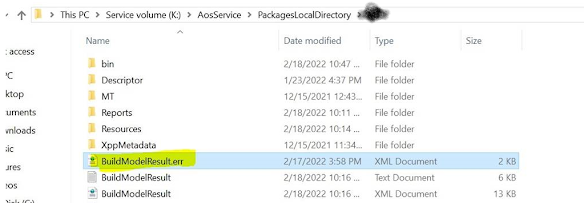
    once you complete your model build you will get one error file generated in below path 

2) Next you need to rename it as CompileError.xml
and change first Tag name of xml file from <Diagnostics></ Diagnostics > to <IgnoreDiagnostics> </IgnoreDiagnostics>

And keep this file in below location – and do the build.


3) Build the model again and check the result.

Error file format 

<Diagnostic>
<DiagnosticType>Metadata</DiagnosticType>
<Severity>Error</Severity>
<Path>AxDataEntityViewExtension/DimensionCombinationEntity.MT/Relations/CD1/Constraints/RelationConstraintRelatedFixed1/RelatedField</Path>
<Moniker>FieldTypeIsEnumOrInt</Moniker>
<Message>Field type must be enum, int, or int64.</Message>
</Diagnostic>
<Diagnostic>
<DiagnosticType>Metadata</DiagnosticType>
<Severity>Error</Severity>
<Path>AxDataEntityViewExtension/DimensionCombinationEntity.MT/Relations/CD1/Constraints/RelationConstraintRelatedFixed1/Value</Path>
<Moniker>RelationConstraintValueStrMalformed</Moniker>
<Message>The value must be an integer or the enum value in the format: &lt;enumname&gt;::&lt;enumvaluename&gt;.</Message>
</Diagnostic>


Update Values During Data Entity Import in D365FO

Update Values During Data Entity Import in D365FO Updating Field Values During Data Entity Import in Dynamics 365 Finance ...