Friday, March 24, 2023

Create table in email body using X++ code.


Hi All,
Today we are going to see how to create table in email body without using email templates. Please refer below example.

Note - Please make sure your email parameter setup is done and you able to send test email.

Expected result: 


X++ Code
internal final class TestJobTableInEmailBody
{
    public static void main(Args _args)
    {
        SysMailerMessageBuilder messageBuilder = new SysMailerMessageBuilder();

        SysInfoLogStr   emailBodyWithHtml;
        EmailBase       fromEmail = 'no-reply-vendorportal@testgroup.com';
        EmailBase       toEmail = 'vijay.yelmame14@gmail.com';
        EmailBase       ccEmail;
        PurchTable      PurchTable;
        boolean emailSend;

        try
        {
            emailBodyWithHtml = "<table border = '1'><tr><td><b>Payment<b></td><td><b>Currency Code<b></td><td><b>DeliveryPostalAddress<b></td><td><b>Delivery Date<b></td></tr>";

            while select * from PurchTable where 
                PurchTable.OrderAccount =='TEst-VEN'
            {
                emailBodyWithHtml += "<tr><td>"+PurchTable.Payment+"</td><td>"+PurchTable.CurrencyCode+"</td><td>"+any2Str(PurchTable.DeliveryPostalAddress)+"</td><td>"+any2Str(PurchTable.DeliveryDate)+"</td></tr>";
            }
            emailBodyWithHtml += "</Table>";

            messageBuilder.setBody(strFmt(strRem(emailBodyWithHtml, '\r')),true);

            messageBuilder.setSubject("Test Email");
            messageBuilder.addTo(toEmail);
            //messageBuilder.addCc(ccEmail);
            messageBuilder.setFrom(fromEmail);

            emailSend = SysMailerFactory::sendNonInteractive(messageBuilder.getMessage());

        }
        catch
        {
            warning("@Res:NotificationEmailNotSent");
        }
    }

}


Friday, January 13, 2023

Create computed column on view in D365FO using created date time column.

Dear All,

In this article will see how to create computed column in view. As we all know view are returning records from SQL from multiple tables, but some time we are getting requirement to create calculated column using the available column. Similarly, in below example as well we are going to create calculated column using createdDateTime field of PurchLine table.

We can achieve this requirement using display method, but it will not give you the filter and sorting options so let's learn and implement it together.

Requirement: Return a date difference between CreatedDateTime and today's date and show values to the form grid with filter and sorting should be available on return value column.

Solution: Create computed column on view, add view as a DataSource on form and add computed column field into grid.

Implementation: 

Step 1: 
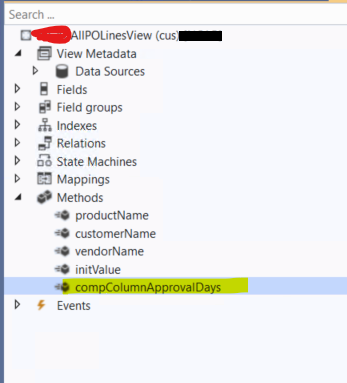
Add new static method on view and add code according to your logic.


X++ Code for method -


Step 2: Add computed column on view.
Right click on view and select column according to your requirement. 


Step 3: Select method in View method property of new created column.


Step 4: Add DataSource column in form Grid. Assuming you are aware on form design so explaining this step-in details. Link 

Step 5: Build and synchronize your project.

Step 6: Verify SQL level changes: 
Filter views by name in AxDb and find how your column is created.


SQL view for this computed column.


Step Last: Validate changes on form, try to apply filters and sort using standard sorting functionality. 


That's It.

Happy Daxing.

Friday, January 6, 2023

How to apply custom range on AOT query in D365 Finance and Operations

Hi All,
Here in this blog will see how to apply custom range on AOT query.

Requirement: Add range on AOT query to get the records created before given days (createdDateTime - PriorDays)

Steps 1 - Add new field in the parameters. Please refer below screen shot.


Step 2 - Create new class and use attribute for range method. Refer below screen shot.

internal final class TestQueryRangeUtil
{
    
    [QueryRangeFunctionAttribute()]
    public static str greaterThanDateByParameter()
    {
        int relativeDays = SalesParameters::find().TestPriorDays;
        utcdatetime  currentDateTime;

        currentDateTime = DateTimeUtil::applyTimeZoneOffset(DateTimeUtil::getSystemDateTime(),               DateTimeUtil::getUserPreferredTimeZone());

        return '> ' +              SysQueryRangeUtil::value(DateTimeUtil::date(DateTimeUtil::addDays(currentDateTime,relativeDays)));  
    }

}
Step 3:Create range on AOT query and add below given expression as value.

(TESTQueryRangeUtil::greaterThanDateByParameter())


Thats it. Happy Coding.

Tuesday, December 27, 2022

How to set count on Tile using X++ (Update tile count runtime)

Set Count Value on Tiles using X++ Query

Set Count Value on Tiles using X++ Query

Dear All,

Today, we will explore how to set the count value on Tiles using an X++ query. I encountered this scenario during a recent customization project. This technique is particularly useful when you need to filter the tile data count based on an unbound control on the form, where the control's value is not associated with any of your dataSource columns.

Requirement

Add an Integer control on the form and upon modification of that control, update the count of the Tile with the condition of records created before a given number of days.

Logic

((today's date - Created Date) > number of days given in the control) then show on the count otherwise not.

Implementation Steps

  1. Create an AOT query to show all the record count without the number of days filter.
  2. Create a Tile and set the below 2 properties:
    • Query: query name
    • Type: count
  3. Create a new form.
  4. Add a new Integer filter control on the form and set the auto declaration property to Yes. (No of Days)
  5. Add a new Tile button on your form and set the tile property with the above-created tile name.
  6. Override the clicked method of your Tile button and add the below code:
public void clicked() {
    #Task
    super();
    element.task(#taskRefresh);
}
  1. Override the getData method of your Tile button and add the below code:
public TileButtonControlData getData() {
    TileButtonControlData ret;
    ret = super();

    if (FilterNoOfDays.value() != 0) {
        int recordCount = element.countFromQuery(queryStr(TestTilePOLInes));
        ret.strTileData(any2Str(recordCount));
    }
    return ret;
}
  1. Add a new method on the form level with the below code to get the count from the query with the No of days condition:
public Integer countFromQuery(str _query) {
    int totalRecords;
    Query query = new Query(_query);
    QueryRun qr = new QueryRun(query);

    while (qr.next()) {
        TESTAllPOLinesView dsTest = qr.get(tablenum(TESTAllPOLinesView));
        int dateDiff = today() - DateTimeUtil::date(dsTest.CreatedDateTime1);
        int filterValue = FilterNoOfDays.value();
        if (dateDiff > filterValue) {
            totalRecords++;
        }
    }
    return totalRecords;
}
  1. Build and synchronize your project area and check the result by modifying the Number of days filter control.

Saturday, December 24, 2022

How to add range on AOT query and X++ with two different columns.

Hi All,
Let's learn about how to add two different data source columns range on one column range in AOT Query. also i am covering how can we apply same on X++ query.


Apply range on AOT Query:


Only the point to be consider is we need to use parenthesis correctly and Proper enum name - 
DocumentStatus::None.

Apply range on X++ Query.

Override the execute query method of your form Datasource and add below code.

public void executeQuery()
{

//Clear ranges.
this.query.dataSourceTable(tableNum(yourDatasourcename)).clearRanges();

Query query = new Query(this.query());


QueryBuildDataSource TestAllSOLinesView_ds1 = query.dataSourceTable(tableNum(TestAllSOLinesView));

queryBuildRange queryBuildRange = TestAllSOLinesView_ds1.addRange(fieldNum(TestAllSOLinesView, DocumentStatus));

queryBuildRange.value(strFmt('((DocumentStatus == %1) || ((TestConfirmationStatus == "%2") 
&& (DocumentStatus != %1)))',any2int(DocumentStatus::None),
any2int(TestConfirmation::ToBeConfirmed)));

this.query(query);

super();

}

AOT Range on 2 different date columns
 refer below screen shot - I have set the value property with greater than condition on two date column of my data source.

ex - (TestReqShippingDate > TestAllPOLinesView.TestConfirmedShippingDate)


How to create multi selection lookup on form control

Hi All,
In this article will see how to create multi selection lookup on a form control.

For this we need to create one AOT query like CustTablelookup. for that you can refer the documents provides by Microsoft docs.

Expected Result is below: 


Step 1: Create a control on form and set auto declaration property to yes. 


Step 2: Override the Init() method of form and add below code.

public class TestLookupTestControl extends FormRun
{
        SysLookupMultiSelectCtrl        custAccountMultiSelectControl;
}

public void init()
{

        super();

        custAccountMultiSelectControl = SysLookupMultiSelectCtrl::construct(element,FilterCustAccount, queryStr(CustTablelookup));       

}

Thats It. Happy Coding.


Monday, December 12, 2022

D365 F&O Warehouse management application customization Part 2- Perform auto click from x++ code.

Hi All,

Welcome to the second part of this series. In this blog will see how we can perform the auto click after auto populating values.

This is required because in standard logic system is working like on first click it will fetch item id , then on second click user will enter the quantity and so on. So if we are auto populating all the values in first click then we need to skip other clicks and process for the next form directly. Refer the issue on this link.

As we have learn in the first blog, you need to identify the child class according to your requirement and execution mode define in your menu item setup.
Below class is the extension of WHSWorkExecuteDisplayPOReceiving and created COC for displayForm() method.

Inside displayForm() method we need to identify the logic to trigger the auto button click.
In below case I have written a logic like once all the values are not equals to blank then perform auto click and for safer side to avoid recursion I have added one flag in pass object.

[ExtensionOf(classStr(WHSWorkExecuteDisplayPOReceiving))]
final class WHSWorkExecuteDisplayPOReceiving_ModelTest_Extension
{
    // COC of display form method in extension class.
    public container displayForm(container _con, str _buttonClicked)
    {
        Container returnedCon;
        #WHSWorkExecuteControlElements
        #WHSRF

        //Next statement

        returnedCon = next displayForm(_con, _buttonClicked);

        //Logic to skip the extra clicks goes here.
        if(step == 1 && !pass.exists("AutoClickOk")&&
        mode == WHSWorkExecuteMode::PurchaseOrderItemReceivingAndLocate)
        {
                pass.insert("AutoClickOk",'1');
                
                // this line will perform auto click
                returnedCon = this.displayForm(returnedCon, #RFOk); 
        }
        
        return returnedCon; 
    }
}


That's It. Lets enjoy the success of auto click and stay tuned for the next blog.

Update Values During Data Entity Import in D365FO

Update Values During Data Entity Import in D365FO Updating Field Values During Data Entity Import in Dynamics 365 Finance ...